How to Send Weekly Automated Reports from Airtable via Gmail Zapier Integration
Let's be honest for a second. Nobody likes compiling those weekly reports. You know the ones. You spend hours on Sunday evening, copying numbers from Airtable, pasting them into a spreadsheet, then another hour making a pretty chart that nobody will look at. Finally, you attach it to an email, pray you got all the recipients right, and hit send. There goes your weekend. It's soul-crushing. And worse, it's a massive waste of your brainpower. What if your Airtable base could just... send that email for you? On a schedule. Every single week. Without you lifting a finger after the initial setup. That's not a pipe dream. It's what we're building right now with Zapier and Gmail.
Why Airtable + Zapier is Your New Reporting Robot

Here's the thing about automation. You don't automate the easy stuff. You automate the repetitive, boring stuff that makes you want to scream. Sending a weekly report is the perfect candidate. Airtable is where your data lives. Zapier is the middleman that can read that data and tell another app (like Gmail) what to do with it. Think of Zapier as your ultra-reliable, slightly nerdy assistant who never forgets. You tell it: "Every Friday at 5 PM, look at this specific view in Airtable, package it up, and email it to this list." And then? You get to forget about it forever. The magic happens in the background while you're doing actual work.
The 5-Minute Zap: Your Weekly Autopilot Blueprint
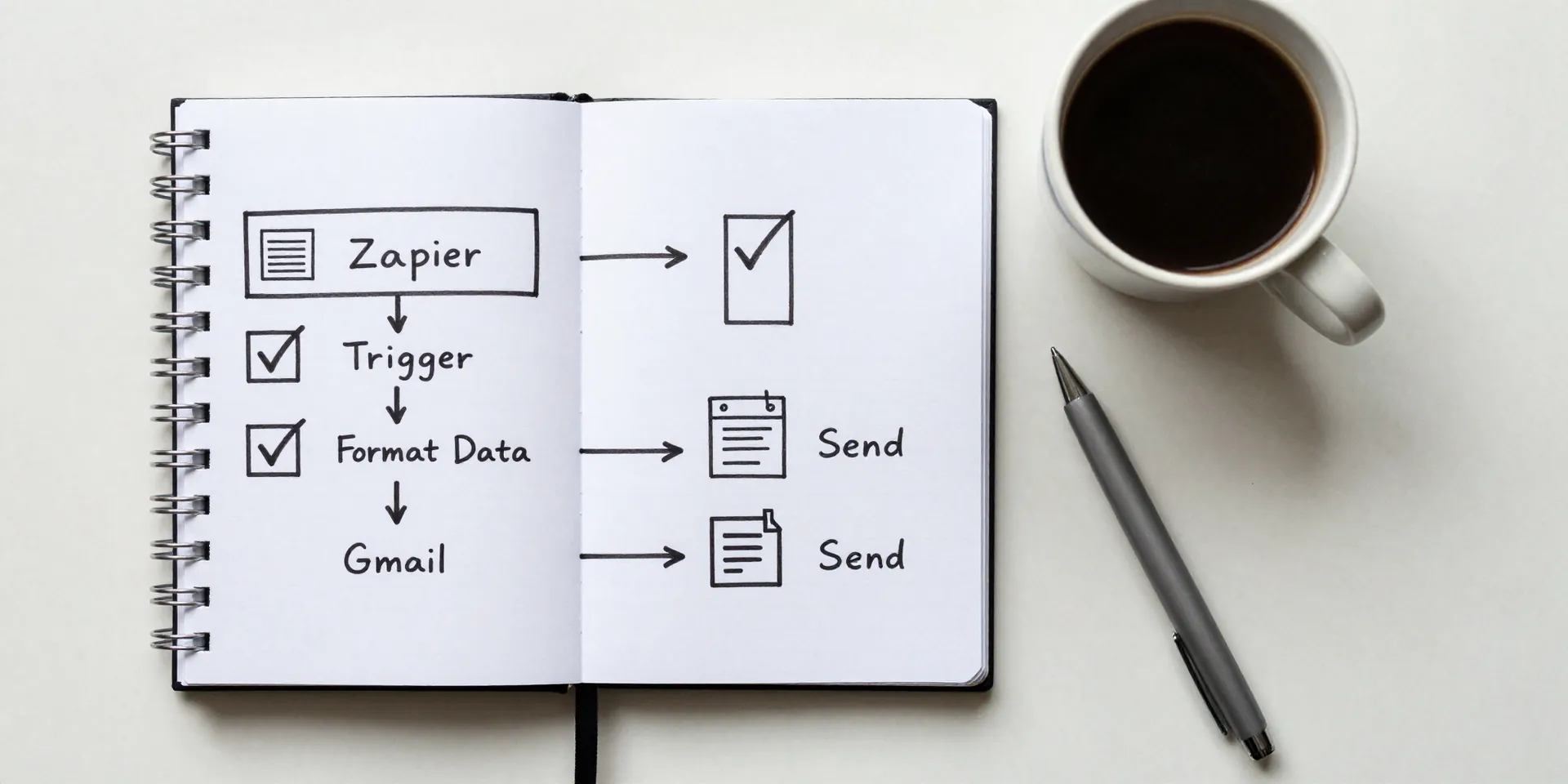
Okay, let's build this. First, go to Zapier and click "Make a Zap." You'll need accounts for Airtable, Zapier, and Gmail, obviously.
Step 1: The Trigger (The "When This Happens...")
For your trigger app, select
Airtable
. For the trigger event, choose
"Schedule"
. This is the key. You're not triggering the zap when a record is updated. You're telling it to run on a timer. Set it to "Weekly," pick your day (Friday is classic), and choose a time. Pro tip: Send it Monday morning so people see it fresh. Your choice.
Step 2: The Action (The "...Then Do This")
For your action app, select
Gmail
. The action event will be
"Send Email."
Now, the fun part.
Crafting an Email That People Actually Read
Sending a crappy, auto-generated email is worse than sending a manual one. Don't just dump data. Zapier lets you pull specific fields from your Airtable records right into the email body. Use this power wisely.
In the Gmail action step, you'll map fields. For the Subject line, use something dynamic like: `Weekly Metrics: {{Airtable Field for "Week Ending Date"}}`. In the Body , write like a human. Start with a quick intro. Then, use Zapier's "Line Item" feature if you need to list multiple records. Or, just pull the top 3 KPIs into bolded lines. The goal is scanability. A busy person should get the gist in 5 seconds. Attach a PDF snapshot of a key Airtable view if you want, but the meat should be in the email itself.
Test Drive Your Automation Before You Walk Away
Don't just set it and pray. Zapier has a glorious "Test" function. After you've built your zap, hit the test button for each step. It will use real data from your Airtable to send a *real* email to your address. Do this. Check the email. Does it look right? Are the numbers populating correctly? Is the subject line clear? This 2-minute check saves you from a "Why is my boss getting gibberish?!" panic attack next week. Once it looks perfect, flip the switch to "On." Your robot is now live.
Beyond the Basics: Making It Actually Useful
The first version is just the start. Once you see that email land in your inbox like clockwork, you'll get ideas. Maybe you add a filter in Zapier: only send this report if the "Weekly Growth" field is over 5%. Maybe you create different zaps for different departments, pulling from different Airtable views. The point is, you've taken a manual chore and turned it into a system. A system you can tweak and improve without the Sunday night dread. Now go use that reclaimed time for something that actually matters.